Web push notifications are a powerful tool that can be leveraged to help solve the issues of Cart Abandonment and User Drop-offs. With MoEngage, you can set up these web push notifications to guide the users back to their cart, or to the page where they dropped off from. Our customers have made the most out of our behavior-based triggers and experienced great results with campaign click-through rates as high as 45%.Documentation Index
Fetch the complete documentation index at: https://moengage-ios-release-notes-breaking-changes-doc-1961.mintlify.app/llms.txt
Use this file to discover all available pages before exploring further.
Setup Search/View/Cart Abandonment Web Push Campaigns within 60 minutes
To set up a Web Push campaign, you must:Step 1: Integrate Web Push on your website
You can configure Web Push Settings on your MoEngage dashboard and integrate Web SDK on your website by following the integration docs. This would take less than 30 minutes and you will start seeing web user events on the dashboard.Step 2: Setup Web Push Trigger Notifications
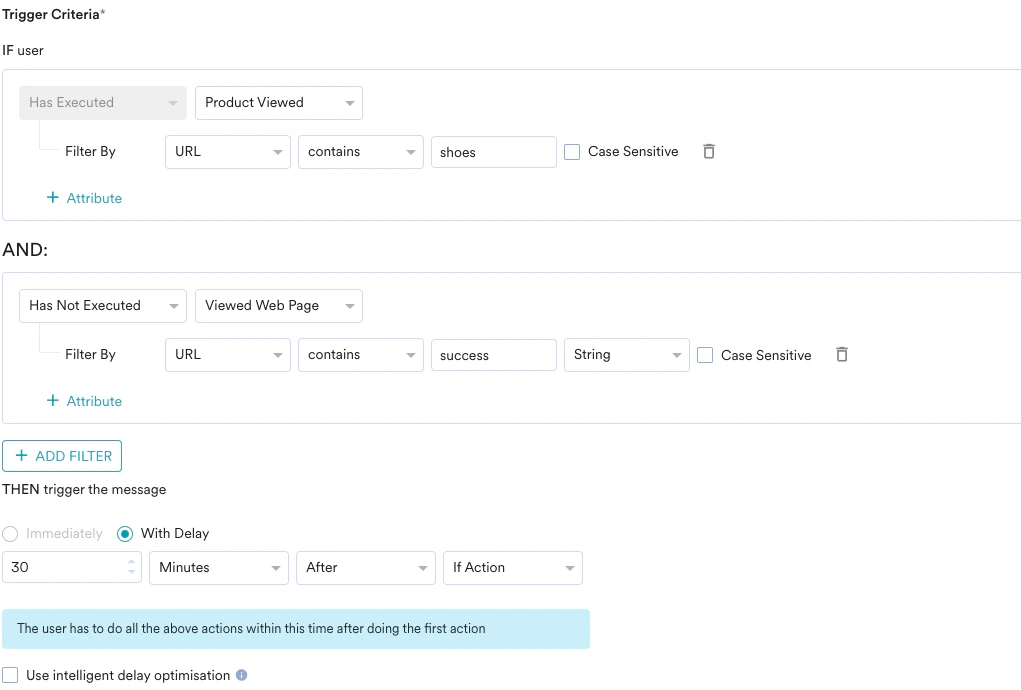
- Navigate to MoEngage > Engage > Create Campaign > Push and click Event Triggered.
- Select the trigger action as shown in the below screenshot.
- Set the trigger time per your requirement. For instance, 30 minutes.
Step 3: Setup Web Push Notification Messaging
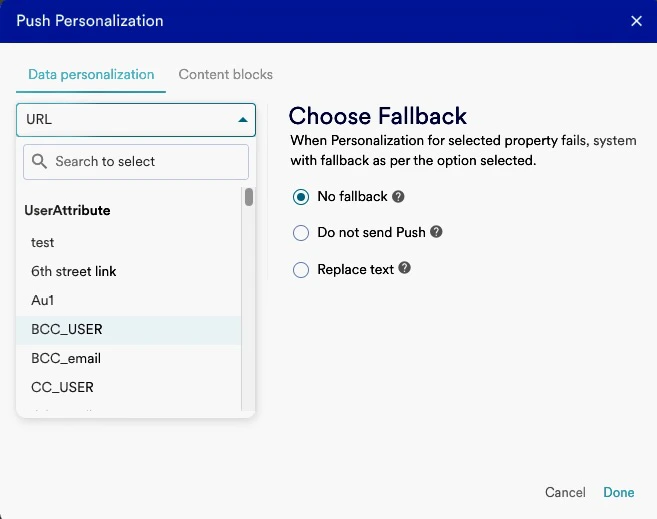
Enter the Notification Title and Message and personalize the Redirect URL by entering ”@” and selecting “URL” under Event Attributes as described: