Documentation Index
Fetch the complete documentation index at: https://moengage-ios-release-notes-breaking-changes-doc-1961.mintlify.app/llms.txt
Use this file to discover all available pages before exploring further.
Problem
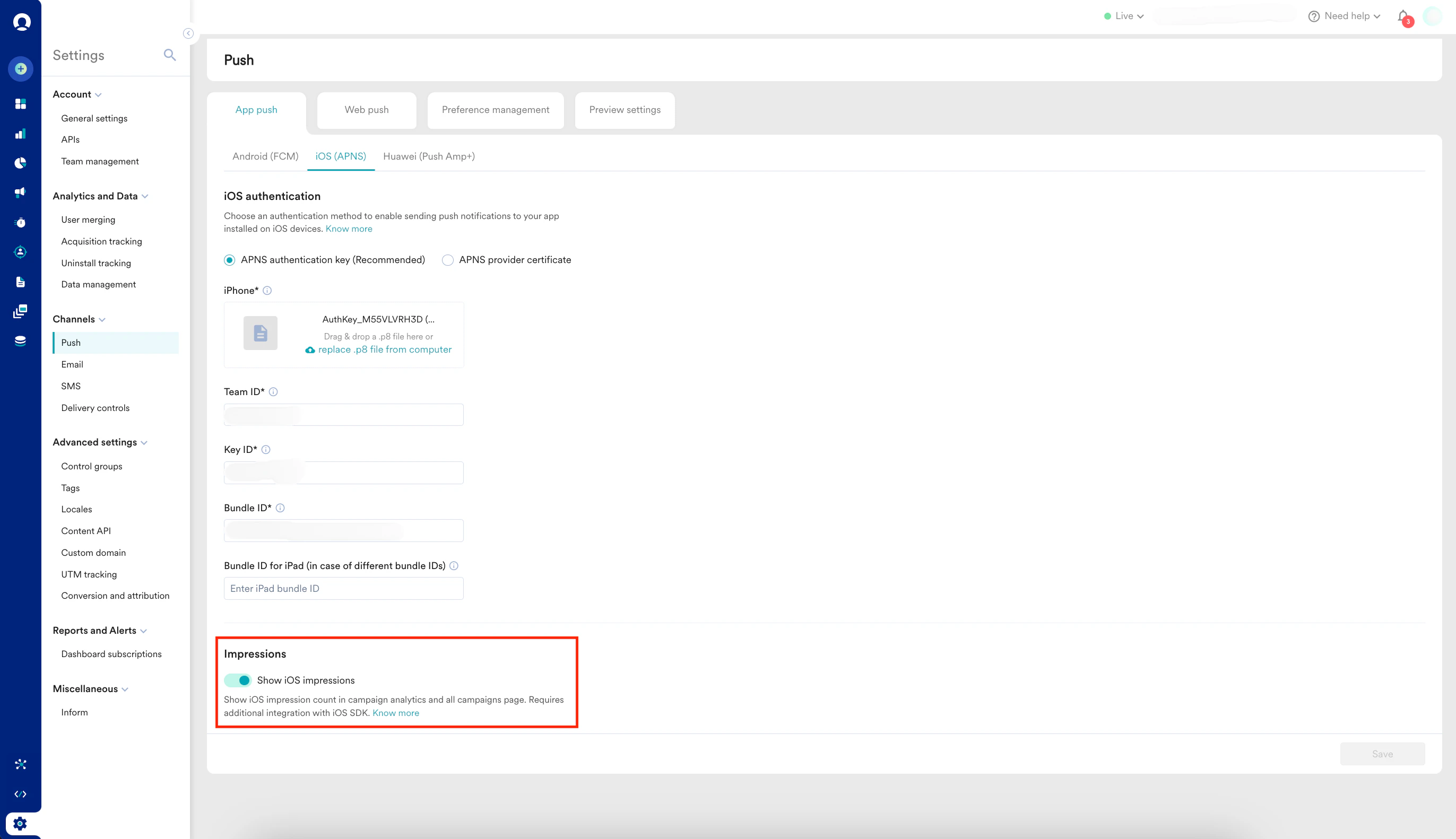
Common issues with Push notifications, including Push Campaign impressions not being tracked and images not rendering even though Push notifications are successfully delivered to device with SDK version 7.x.x.- To track impressions, ensure that the Notification Service Extension is implemented in your app.
- Additionally, enable the Show iOS impressions toggle on the MoEngage dashboard by navigating to Settings → Channel → Push → IOS.
Solution
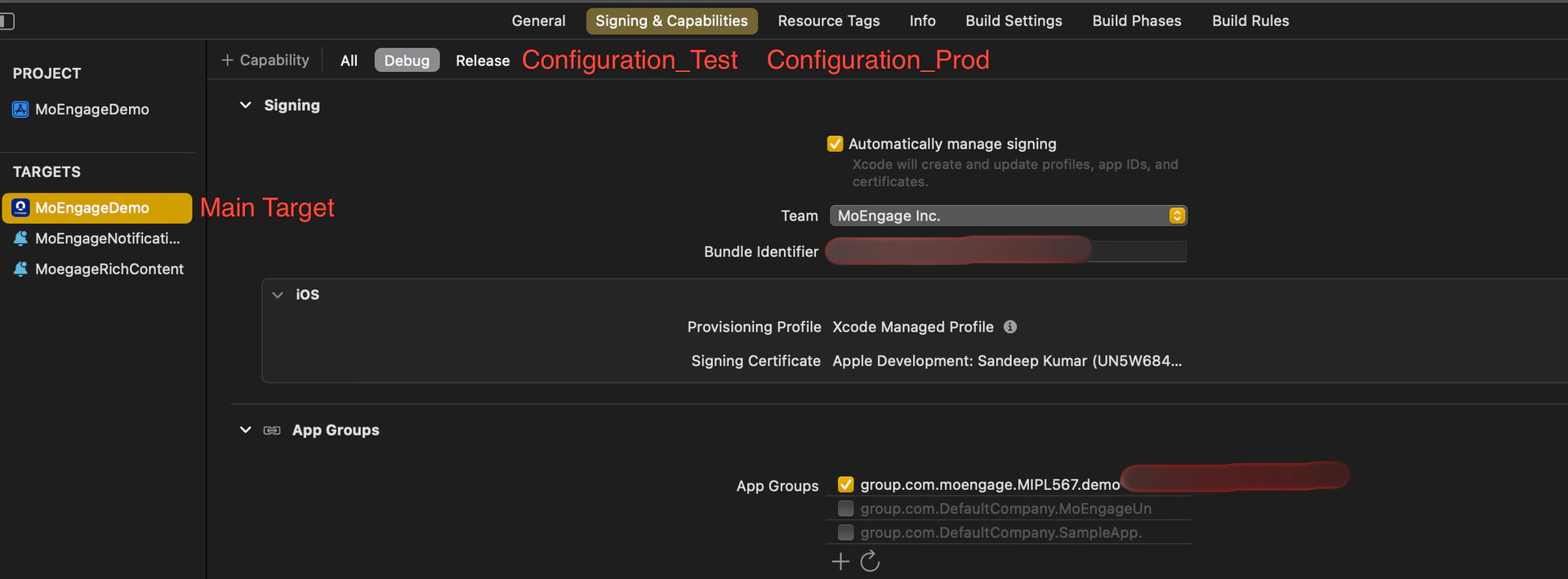
Perform the following steps:- Add app_group_id to Your Project’s Main Target for Each Configuration:
You can add the same app_group_id or different ones across configurations.
If your configurations use different Bundle Identifiers but share the same app_group_id, issues may arise. Specifically, if two apps with different Bundle Identifiers but the same app_group_id are installed on the same device, the Notification Service Extension may fail. To avoid this, you can use the same app_group_id across multiple configurations, but be aware that you won’t be able to test all apps simultaneously on a single device.
- Add app_group_id During SDK Initialization:
- If you initialize the SDK using info.plist, add the APP_GROUP_ID key inside the MoEngage key in your info.plist file.
- If you initialize the SDK using sdkConfig, add the APP_GROUP_ID in the sdkConfig variable inside the AppDelegate file.
app_group_id in info.plist: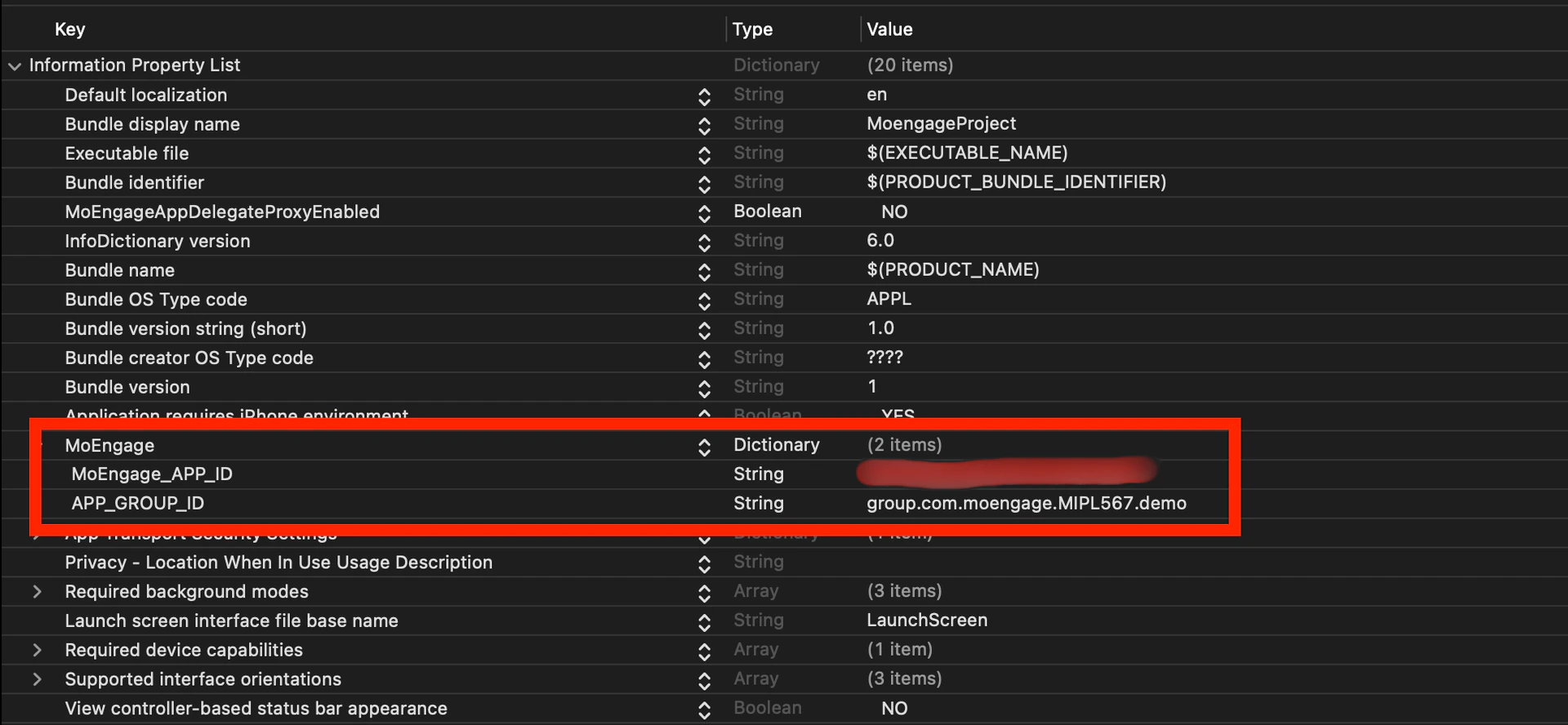
SwiftObjective-C - Create a Notification Service Extension Target:
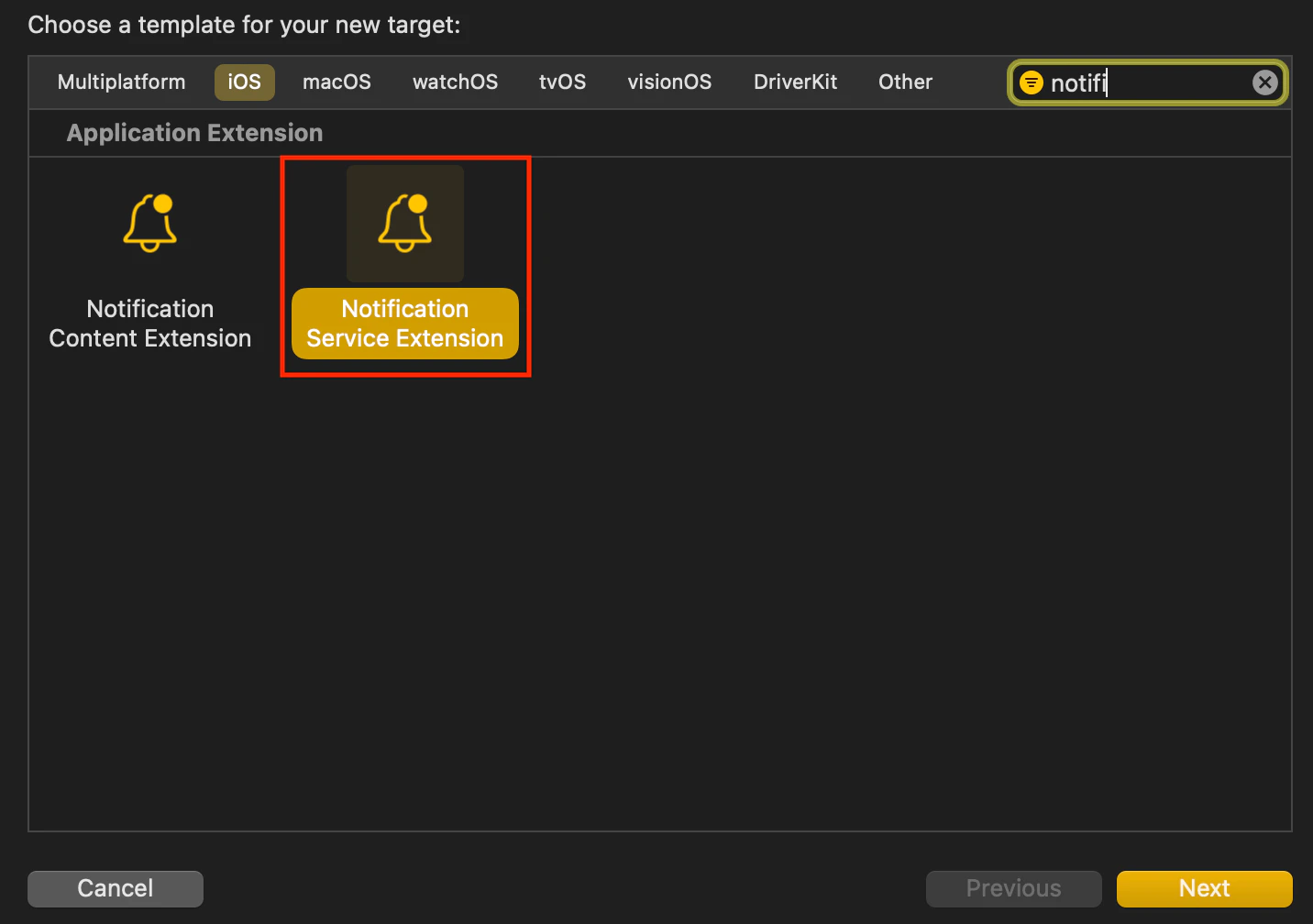
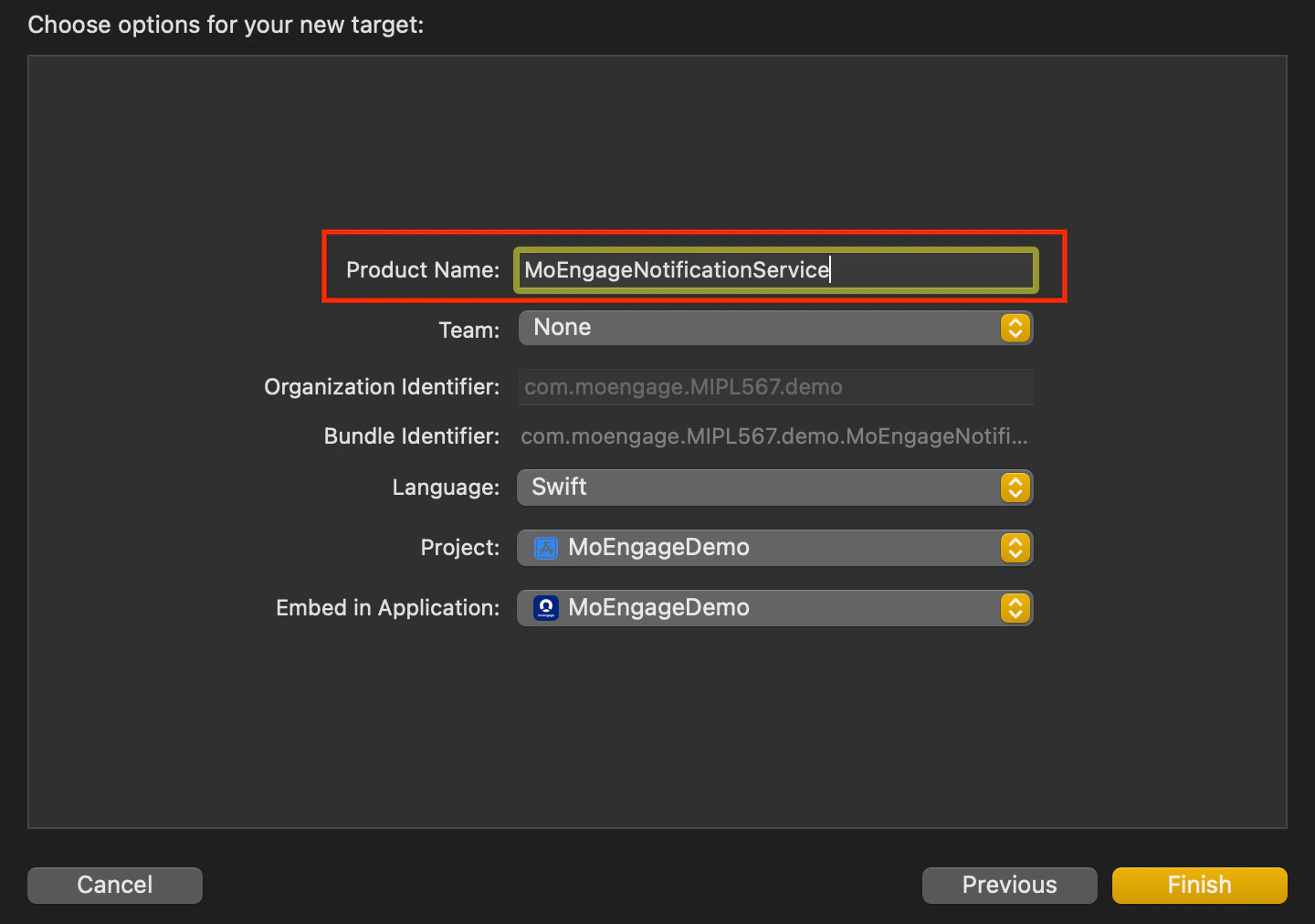
- Name the Extension Target: Choose a name for the extension target. Swift is recommended as the language as it works seamlessly with Objective-C projects too.
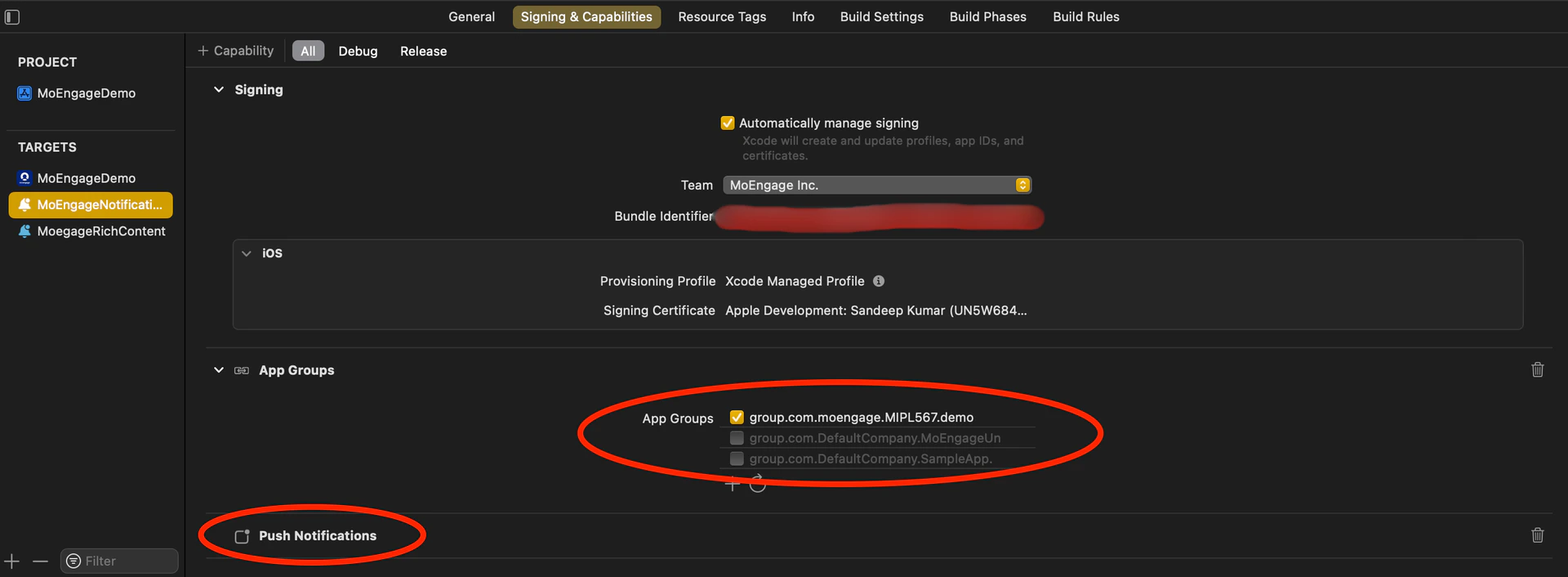
- Enable Push Notifications: In the extension target’s Signing & Capabilities section, enable Push Notifications and add the AppGroupId.
- Align the Minimum Deployment iOS Version: Ensure that the minimum deployment iOS version of the Notification Service Extension matches the iOS version of the main app.
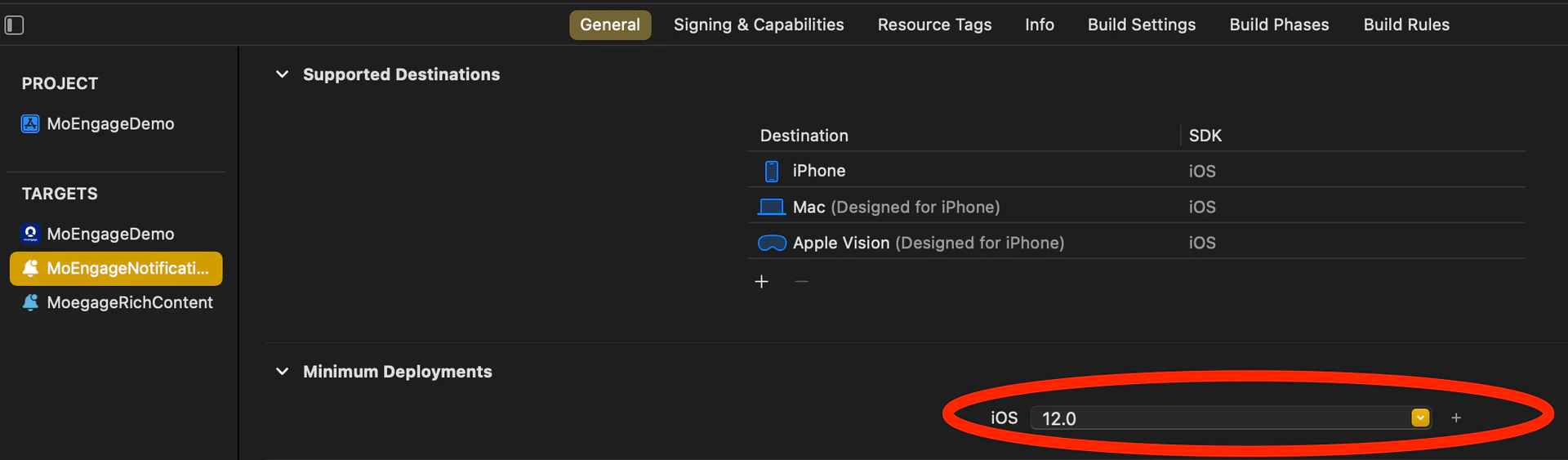
- Name the Extension Target: Choose a name for the extension target. Swift is recommended as the language as it works seamlessly with Objective-C projects too.
- Integrate the MORichNotification Framework into the Notification Service Extension Target: In your podfile, add the Notification Service Extension as a separate target and install the MORichNotification framework.
Swift
- Code changes in NotificationService.swift file:
Swift
- Check Build Phases for the Main App Target: In the Build Phases section of the main app target, locate the Embed App Extensions / Embed Foundation Extensions section. Ensure that the Copy only when installing option is unchecked.
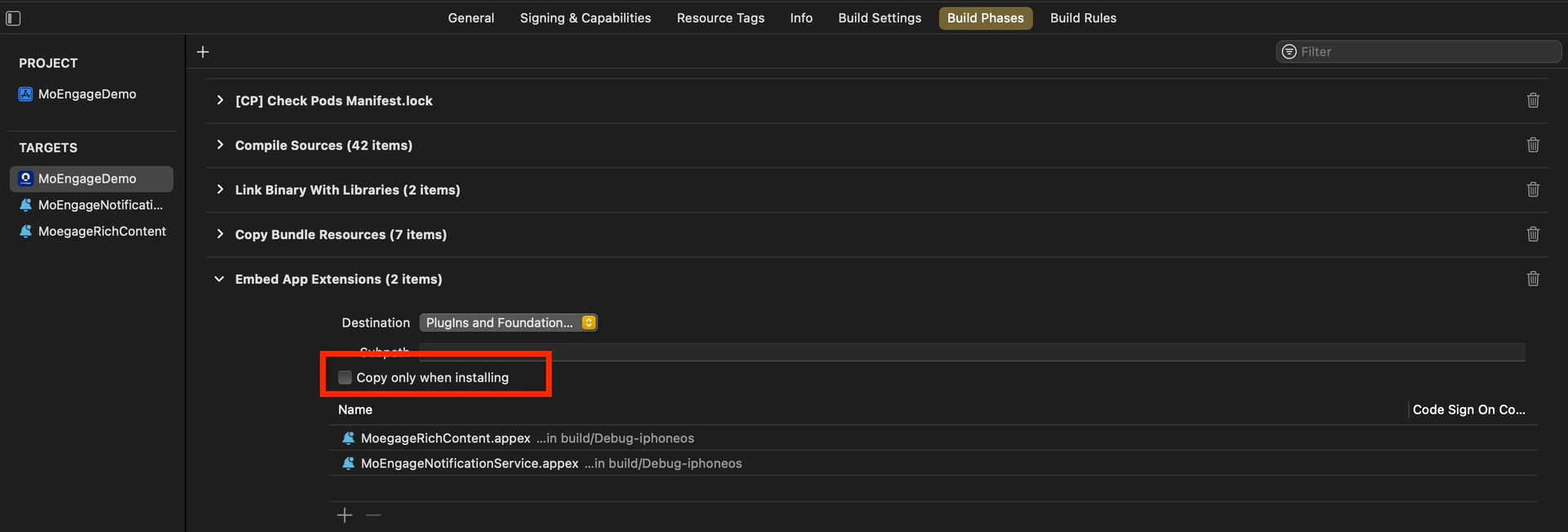
- Ensure Consistent appGroupId Across Configurations: Verify that the appGroupId is consistent across all schemes and configurations (for example, Debug/Release/QA/UAT) in the project.
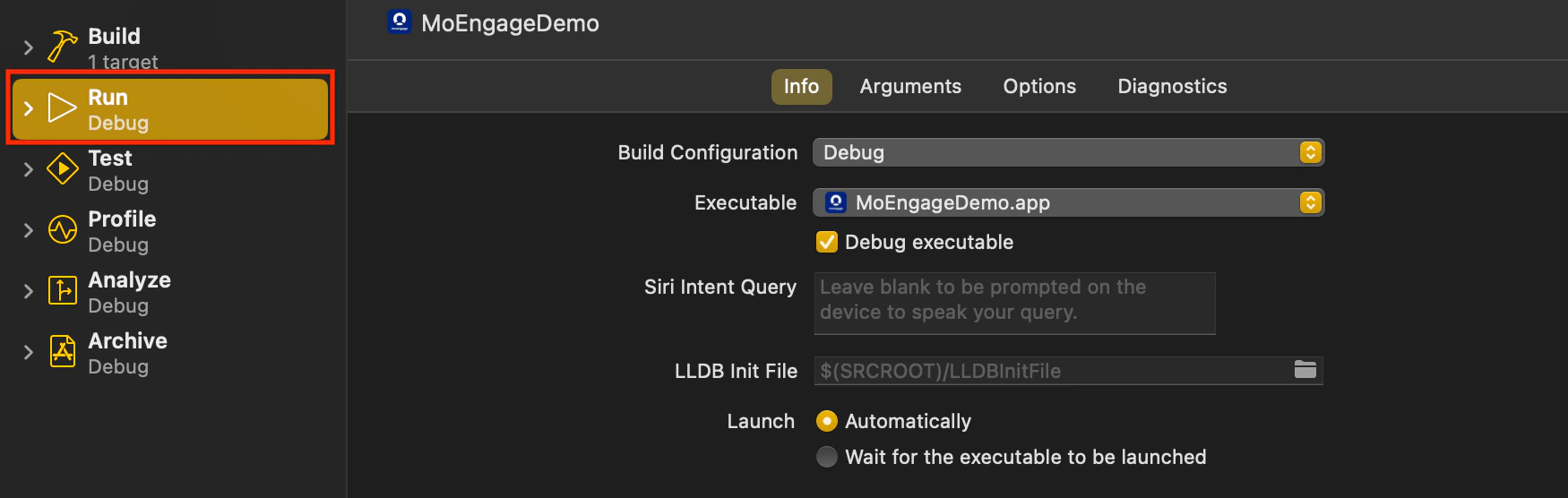
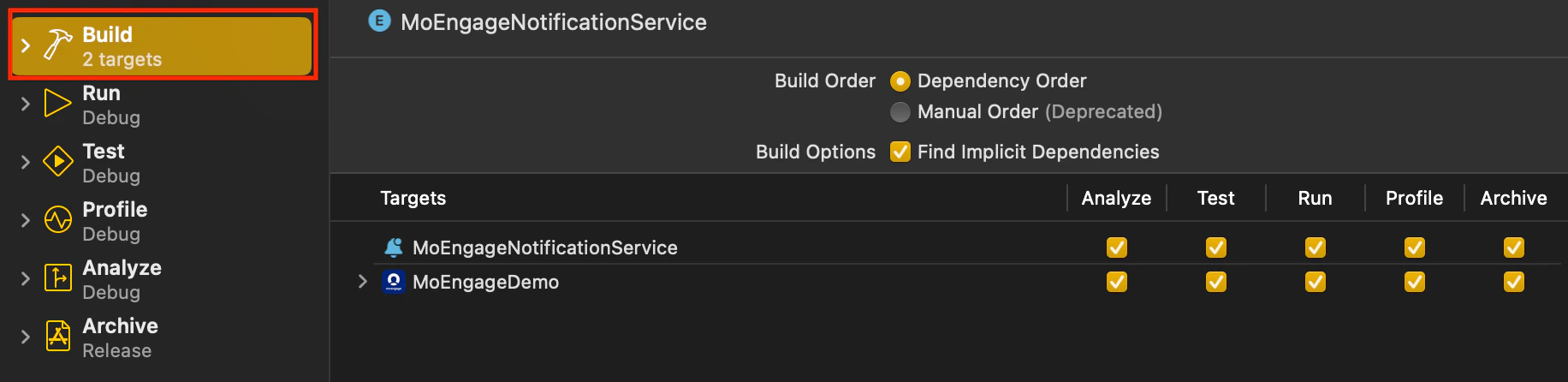
- Align Build Configuration: When running or archiving the project, make sure that the Build Configuration for both the Main Target and the Notification Service Extension Target points to the same scheme/configuration.